¶ Install mLaser and connect the PC
Use the USB/installer that came with this machine. A random “updated” download from a Facebook post is how people crash the Z on day two.
¶ Before installation
- Obtain the current M-Series installer from the official documentation/support channel.
- Verify which Windows version and mLaser build Gweike supports for your serial number.
- Copy the installer and original parameter/configuration files into a dated backup folder.
- Use a Windows account allowed to install the required driver and network components.
- Keep the laser source disabled and the work area clear while establishing control.
¶ Make the wired connection
Connect the PC directly to the machine/control Ethernet port with a known-good cable. If the computer has no Ethernet port, use a reliable USB adapter and keep it in the same USB port after commissioning.
The manual's workflow uses a fixed local network. Enter the exact IP address, subnet mask, and any controller address supplied for your machine—do not invent values from another owner's screenshot. Usually the machine link does not need a default gateway or DNS server.
Temporarily identify the dedicated adapter by giving it a clear Windows name such as Gweike M-Series. Record:
- PC IPv4 address and subnet mask;
- controller address shown by Gweike/mLaser;
- adapter make and USB port;
- mLaser version;
- Windows network profile and any firewall prompt selected.
¶ First connection
- Power the control layer using the documented machine sequence; leave laser emission disabled.
- Confirm Windows shows a physical Ethernet link.
- Open mLaser and select the supplied machine/controller configuration.
- Connect and wait for machine state, axes, and alarms to populate.
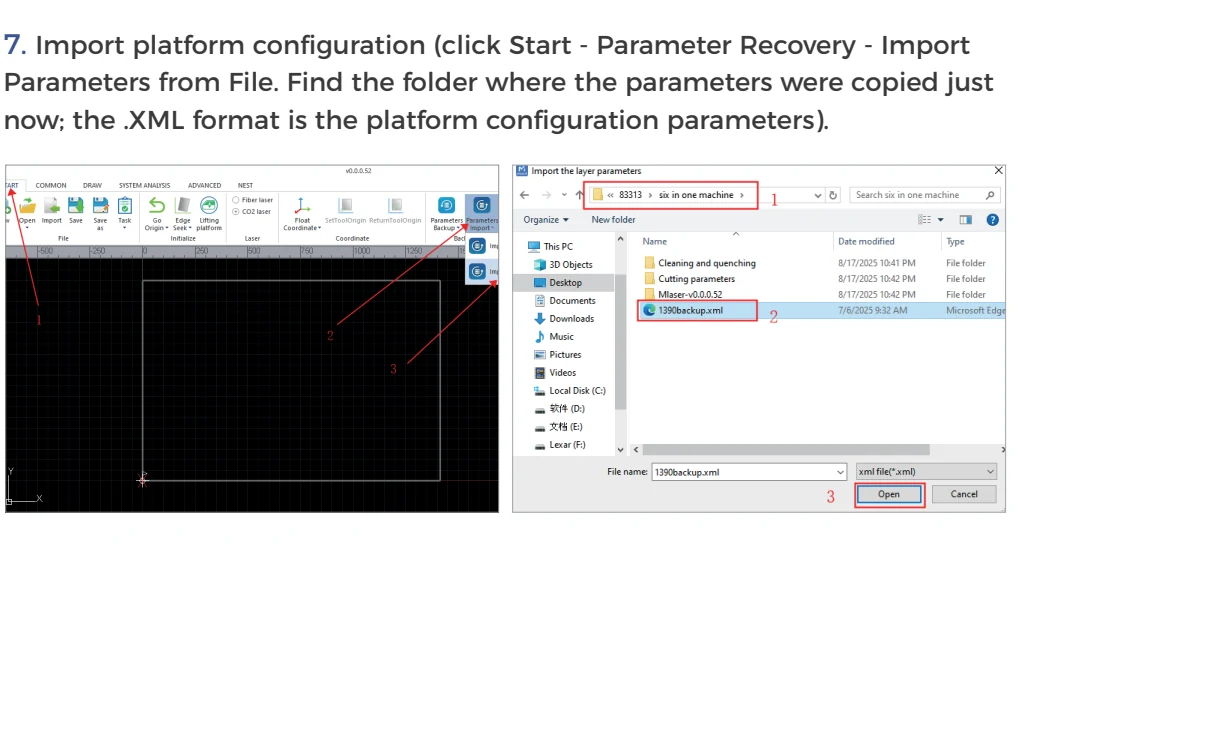
- Preserve every original parameter set before editing.
- With the motion envelope visibly clear, test low-risk control actions such as state refresh and the documented homing sequence.
¶ If it will not connect
Do not reinstall everything first. Check in order:
- Physical: link lights, cable, correct machine port, adapter present in Windows.
- Addressing: PC and controller addresses are in the same supplied subnet and not duplicated.
- Software: correct mLaser build, machine configuration, and controller selection.
- Policy: firewall/security software did not silently block the private connection.
- Isolation: Wi-Fi, VPN, virtual adapters, or a second interface is not sending traffic down the wrong route.
See the full mLaser connection fault tree.
¶ Save a known-good baseline
When connected, export the allowed configuration/parameter backup, capture screenshots of the software version and connection page, and copy them off the control PC. Never share or publish service passwords. Do not change hidden or service-only parameters merely to remove an alarm.
Next: run the first safe fiber test cut.
¶ Official Gweike walkthroughs
These are Gweike's own walkthroughs. Keep the checks above, use the clip that matches the task, then prove the result on your machine.
4. Software installation and connection
Windows mLaser install from the USB: copy locally, install the listed runtime, open online mode with the password in your pack, import that machine’s XML, fit the Ethernet cable and pendant receiver, then watch the first home. Wrong-way motion is an e-stop, not a parameter experiment.
37. Software upgrade
Software upgrade: keep the last known-good installer and XML, then install only the file Gweike sent for this serial. Never upgrade to ‘fix’ a network fault.
Related: mLaser software overview, laser-source monitoring and alarms, and the complete official playlist.