¶ Pendant or remote handle not working
Does the pendant not pair, does Windows lose the USB receiver, or do the buttons send the wrong command? Those are different faults. Check pairing, receiver stability, Windows recognition, and mLaser focus/mapping before blaming the handset. Keep laser output disabled and clear the machine: a button that starts working again can move it.
¶ Symptom A: no response and receiver stays connected
- Check battery orientation/charge and inspect contacts for damage or contamination.
- Confirm the USB receiver/dongle is the matching unit and fully seated.
- Use the documented pairing procedure for the supplied handle; do not hold random key combinations while the machine is able to move.
- Verify Windows recognizes the receiver without an error.
- Put focus on the intended mLaser window/mode and test only a low-risk documented key.
- Restart mLaser/control in a safe state after recording current behavior.
¶ Symptom B: Windows disconnects/reconnects USB when a key is pressed
If Windows plays the USB disconnect sound when you press a key, stop repeating the pairing routine. One owner saw that on two computers while the same handle worked on a third (community report). That is an owner report, not a diagnosis of your receiver. Check USB power, receiver hardware/firmware, driver/HID behaviour, and the PC itself.
Test one at a time:
- Move the receiver from a hub/front-panel extension to a direct known-good PC port.
- Use the same physical port that worked during commissioning.
- Observe Windows Device Manager while pressing a safe key; note the exact device that disappears.
- Compare with a second supported Windows PC if available, using the same receiver and safe machine state.
- Record Hardware IDs, Windows build, whether the device chime occurs, and which key triggers it.
Do not repeatedly reconnect it while an axis or laser command could be accepted. If the behavior follows the receiver across supported PCs, request a replacement/firmware path from Gweike. If it occurs on one PC only, focus on its USB power management, driver stack, port, or security software.
¶ Symptom C: some buttons work or commands are wrong
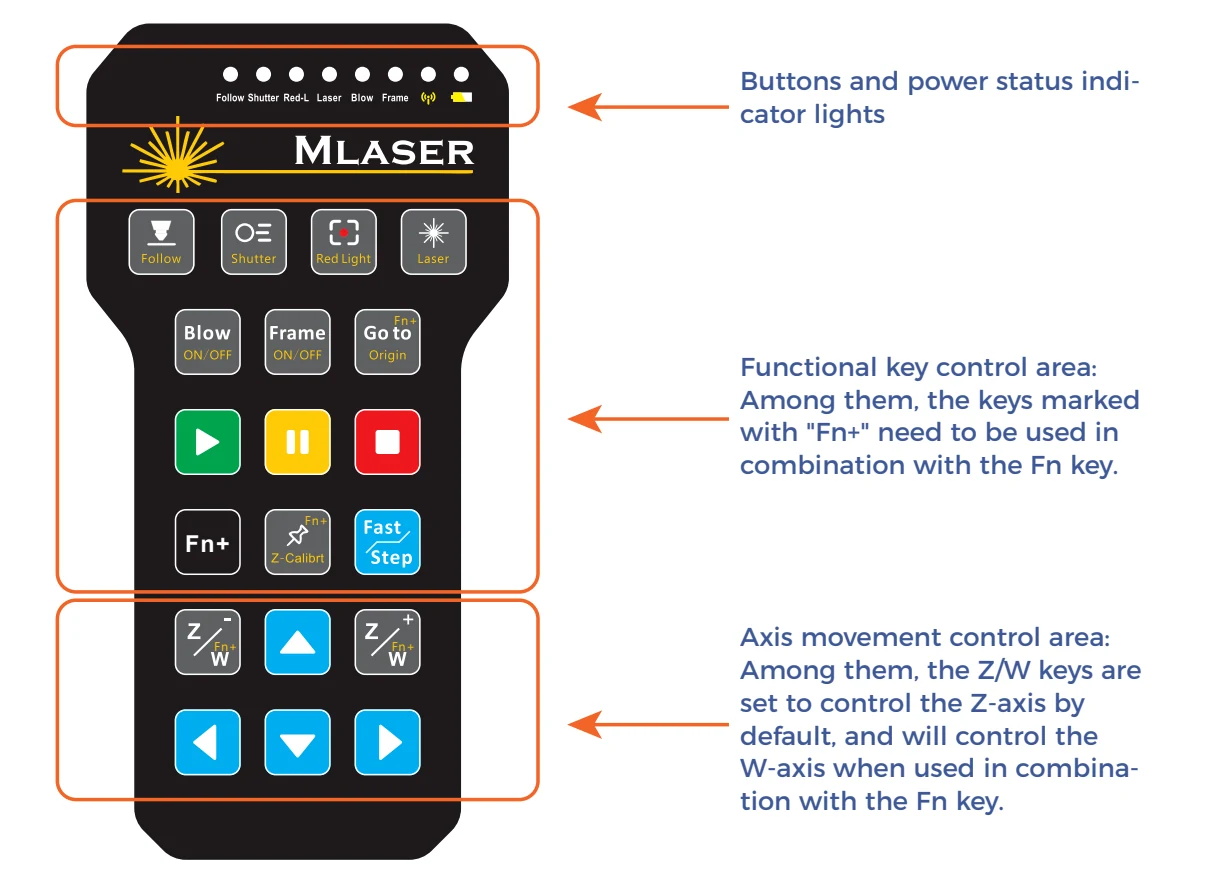
Confirm the correct mLaser mode/window, handle mapping/profile, and software version. Photograph the intended button map from the supplied manual rather than guessing. A key that produces a different command is a stop condition until mapping is verified.
¶ Support package
Include machine model, pendant/receiver labels, battery voltage/condition, mLaser and Windows versions, Device Manager evidence, pairing result, exact safe key tested, USB port type, and cross-PC result.
¶ Official Gweike video
This is Gweike's own walkthrough. Keep the checks above, watch the sequence, then prove the result on your machine.
- 5. CNC Handheld Controller
- Full playlist: Gweike M-Series official videos
¶ Official Gweike walkthrough
Pendant tour: axis jog, fast/slow, follow on/off over metal only, shutter then spot, blow, frame, Z, and the Fn combinations for origin, Z-calibrate, start, pause, and stop. Output stays disabled until follow and frame are proven.